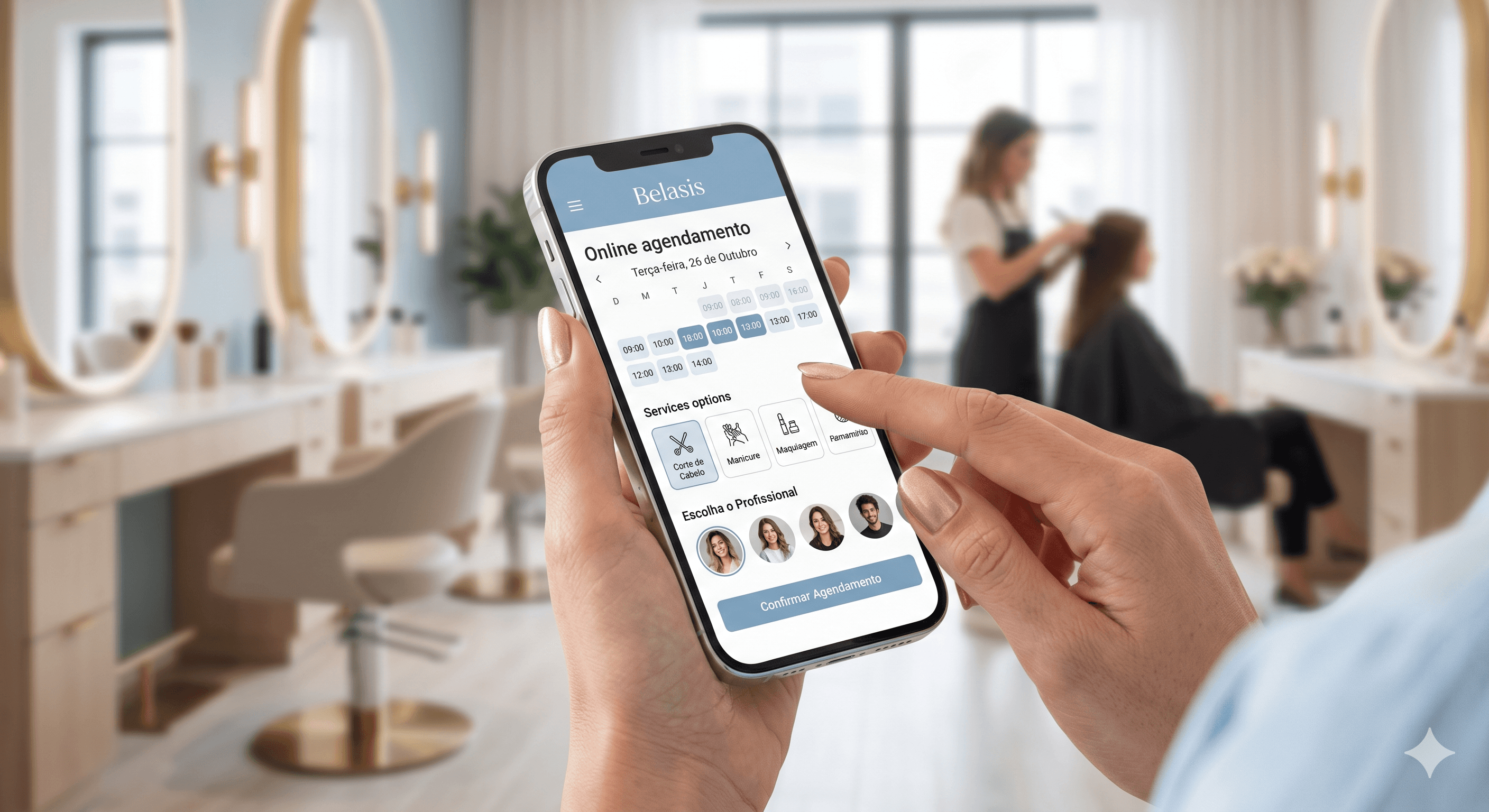
Learn what the main features of our online scheduling are, how to use them, and make your daily routine more practical!
If you are that person who is always leaving their planner in some corner of the house or work, or if you want to save time and money when making your appointments, online scheduling is the perfect tool for you!
In this post, we will present Belasis' online scheduling system so you can get to know the main features available and learn how to use them to your advantage. After all, an online scheduling system can be accessed from anywhere, optimizes the entire service process, and prevents failures and forgetfulness from happening.
How does the Belasis online scheduling work?
Step 1: Logging into the system
After accessing the Belasis page, the system will ask you to log in. To do this, enter the email you used for registration in the first field, and the chosen password in the second field. Click on “log in“.
Step 2: “Today’s Schedule”
When you log in, the system will open to the home page, where you will find a list of all appointments scheduled for that day, a list of confirmed, canceled, and pending appointments, the calendar for the month, and, for salon owners, other management features.
On this page, appointments will be organized according to the time range determined by the professional. Therefore, you can also view the expected time for each scheduled service.
Step 3: Create an online appointment
Creating an appointment is very easy. On the home screen, click on the green button in the upper left corner that says “+ Appointment”, or click directly on one of the available times in the schedule right next to it.
Immediately after, you will see a second screen where you can fill in information about the date, time, professional who will perform the service, and the appointment status (confirmed, canceled, or pending).
In the fields below, you can fill in the information regarding the client, such as name, phone number, requested service, and estimated time for the appointment. In addition, our system offers the option to send a reminder SMS, which can be activated by checking the box at the very bottom of the page.
After filling it out, click “Save”.
Step 4: Customer registration
If the client is already registered, the scheduling process will end at the previous step. If it is a new client, with no data yet, the system will ask you to register the client by clicking on the “+” button right next to the “Client” field.
By clicking this button, you will see a new screen, where you must fill in the fields with the name, phone number, birthday, and email. After filling in all of them, click on “Update”.
All set! The appointment is made, and it will appear on your online schedule which is available on the main page of the Belasis system.
The client can also consult your schedule and make their own appointment through your salon's website, if they are already registered in the system. To do this, they just need to access the salon's website, enter the phone number registered in the system, select the time, service, and professional they want, and click “Book”. Easy and practical!
Now that you know the Belasis online scheduling system, request a presentation on our website or register to try our test version. With our system, you can do much more than schedule appointments, as we offer automated tools that calculate commissions, cash register opening and closing, billing, reporting, and much more!
Do you already know the other features of our App? Check them out here:
By accessing the Features page, you get an overview of what we offer
Specific calendar features can be found here.
Want to sell more? There is a range of sales-focused tools, we have listed them here for you.
To run promotions, advertise services, and send campaigns, check out our marketing features.
Accounts receivable and payable, cash register opening and closing, income and expenses, check the financial section.
Looking for apps? We have them too! Online scheduling apps with customization, commissioning, and payments.
Didn't find what you were looking for? Get in touch with us and tell us all about it.
Share